Troubleshooting
Reading failed
2 min read
This page was translated from Japanese by AI.
Read it again
Section titled “Read it again”- Press “Pending reads” in the left menu.
- Press a row whose status is “Read failed”.
- “We couldn’t read this file” opens, showing the reason it failed and “Try again”. Press “Try again” to read the same file again.
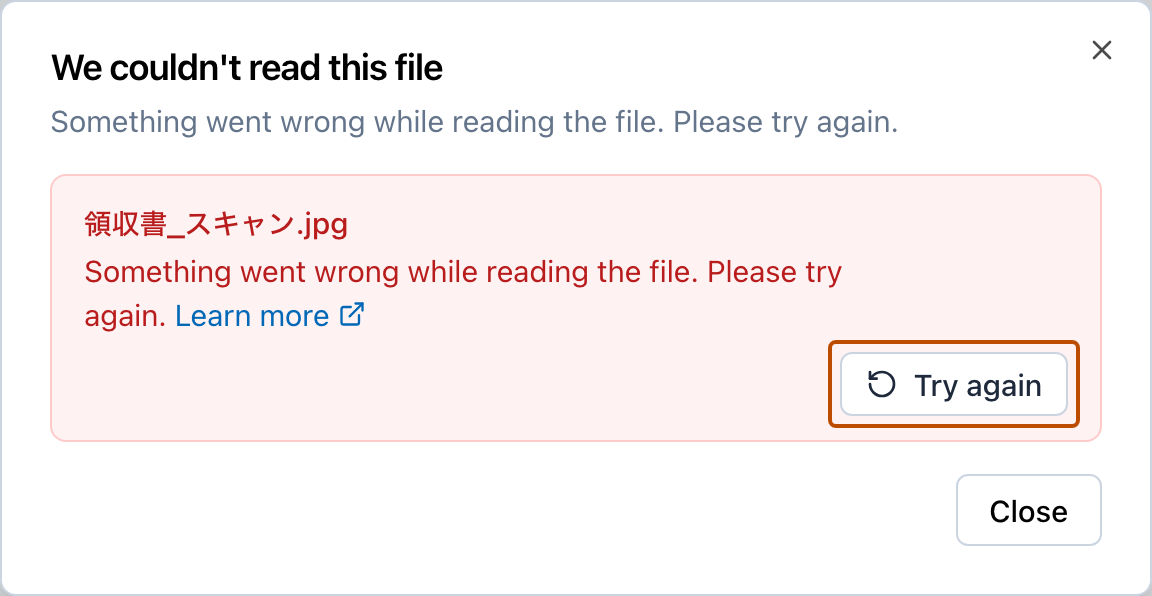
A file whose reading took too long and stopped also becomes “Read failed”. If, right after you press it, a message says the previous reading is not finished yet, the previous reading is still running. Wait a little, and press it again.
You can read the same file again up to 3 times. After that, “This file can’t be read again any more times. Please upload it again” appears, so start a new reading.
About 24 hours after a reading fails, the original file may be deleted and the file can no longer be read again. If “The original file has been deleted. Please upload it again” appears, start a new reading.
When the text of a file was read but the table could not be made, reading it again counts toward the same limit as the conversation with the AI on the review screen. When that limit is reached, the reason is shown.
- “Please wait a while, then try again”: Wait a while before you press it again.
- “You have reached this month’s limit, so the file can’t be read again. Change your plan to use more” and “You have reached the trial limit, so the file can’t be read again. Sign up for a plan to keep using it”: Waiting does not help. Start a new reading, or have an Admin change the plan.
Fix the file before reading
Section titled “Fix the file before reading”When the reason is, for example, that the document is too long or the text cannot be read, reading it again gives the same result. Split the pages or use a clearer file first, and then start a new reading (The Pending reads list).