Reading
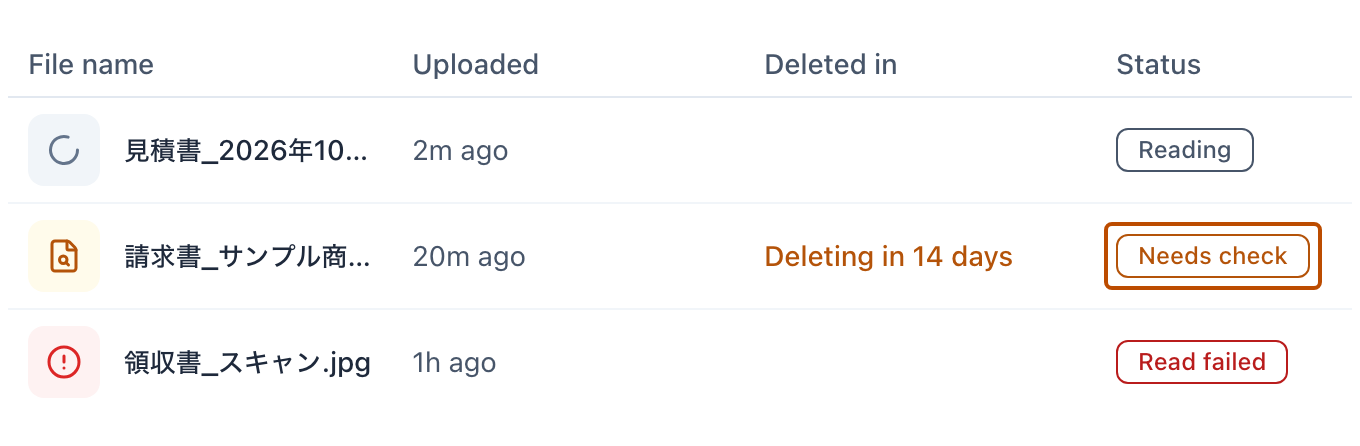
The Pending reads list
3 min read
This page was translated from Japanese by AI.
How to read the list
Section titled “How to read the list”Press “Pending reads” in the left menu to open it. It is the first screen you see after you sign in (Viewers see “Reading results” instead).
| Column | What it shows |
|---|---|
| File name | The name of the file that was read. When you sent several files together, it shows “(first file name) and N more” |
| Uploaded | When you sent the files |
| Deleted in | When the reading is deleted if you leave it without confirming it (see “If you leave a reading unchecked” below) |
| Status | One of “Reading”, “Needs check”, “Read failed”, or “Not handled” (for “Not handled”, see “Answer about documents that were split off” below) |
The number next to “Pending reads” in the left menu is the number of readings waiting for you (“Needs check” and “Read failed”).
The list shows 20 readings at a time. When there are more than 20, use “Previous” and “Next” below the table to switch pages. Only the newest 200 readings are listed. For older ones, only the number is shown, as in “N older reads are not shown”.
Check a reading
Section titled “Check a reading”- Press a row whose status is “Needs check”.
- The review screen opens.
When reading fails
Section titled “When reading fails”- Press a row whose status is “Read failed”.
- “We couldn’t read this file” opens, showing the reason it failed and “Try again”.
- Press “Try again” to read the same file again.
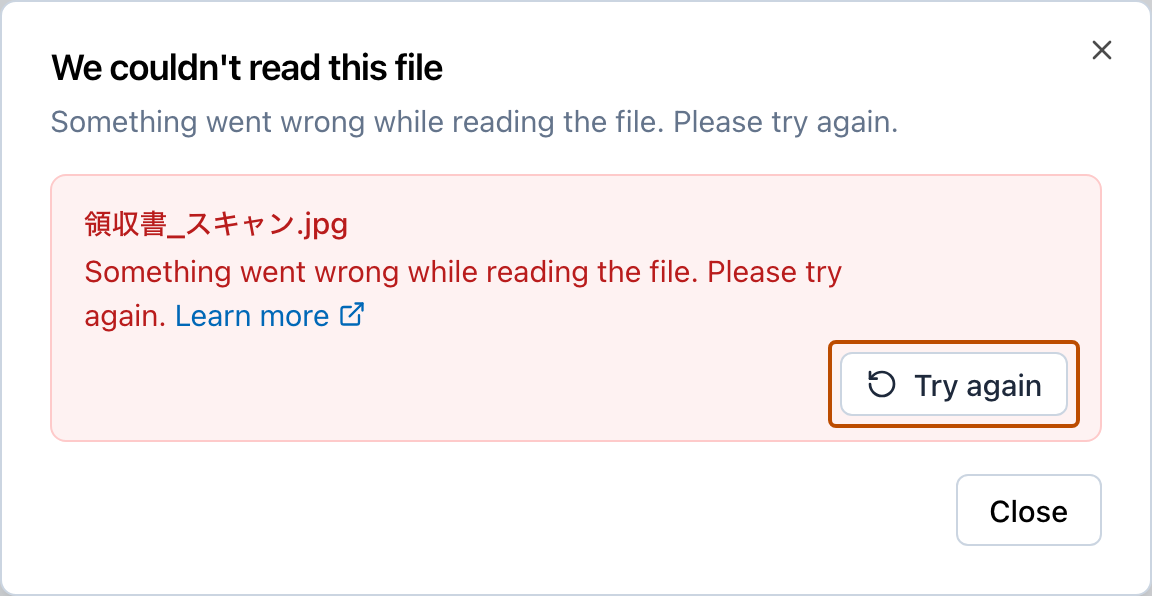
For some reasons, reading the file again gives the same result. Do what the reason says first, such as splitting the file or using a clearer image, and then start a new reading.
You can read the same file again up to 3 times. After that, “This file can’t be read again any more times. Please upload it again” appears, so start a new reading.
About 24 hours after a reading fails, the original file may be deleted and the file can no longer be read again. If “The original file has been deleted. Please upload it again” appears, start a new reading.
Answer about documents that were split off
Section titled “Answer about documents that were split off”If the files you sent together include a different kind of document, it is split off into its own row, and its status becomes “Not handled”.
- “Read as a separate sheet”: Makes a separate reading result from that document alone.
- “Leave out”: Takes the document out of this reading and throws it away. This cannot be undone. The pages used for reading are not given back.
Know when reading finishes
Section titled “Know when reading finishes”When reading finishes, you get a notification in the bell at the top left saying Finished reading “(file name)”. Press the notification to open that reading result.
When you send files together, you get only one notification, after all the files you sent have finished. Its name is “(first file name) and N more”.
- If some files could not be read, the number of them is added, as in Finished reading “(first file name) and N more” (1 file could not be read).
- If none of the files could be read, the notification says Could not read “(first file name) and N more”.
- If you read a file again that could not be read, you get another notification when it finishes.
If you leave a reading unchecked
Section titled “If you leave a reading unchecked”If you neither confirm nor discard a reading for 14 days after it finishes, it is deleted. “Deleted in” shows how many days are left. If you need it, confirm it before it is deleted.
A file left as “Read failed” also disappears from the list 14 days after you upload it. For these, “Deleted in” does not show the number of days.
Who can see the list
Section titled “Who can see the list”Only Editors and Admins can see the Pending reads list. Viewers do not see “Pending reads” in the left menu (Members and roles).