Using results
Export format
1 min read
This page was translated from Japanese by AI.
Download
Section titled “Download”Open the sheet, and from the download button at the top right, press “Download as Excel” or “Download as CSV” (View reading results).
Set the CSV format
Section titled “Set the CSV format”There is one CSV format for the whole organization. Whoever in the organization downloads a CSV gets the same format.
- Press the organization name at the top of the left menu, and press “Settings”.
- Press “CSV export”.
- Choose the options and press “Save”.
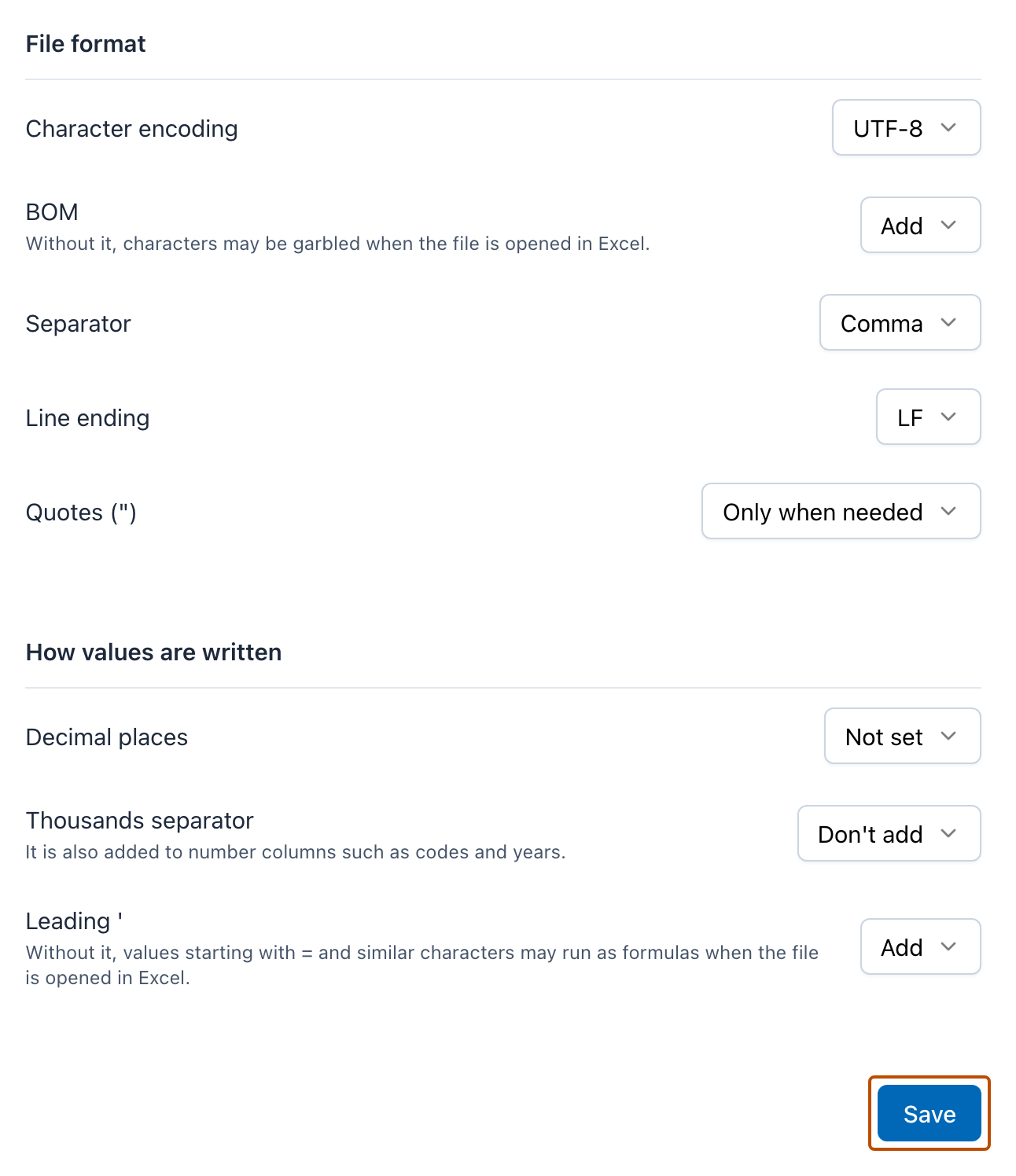
Only Admins can change it. Others can see the current format.
Options you can choose
Section titled “Options you can choose”| Option | Choices | Default |
|---|---|---|
| Character encoding | “UTF-8”, “Shift_JIS” | UTF-8 |
| BOM | “Add”, “Don’t add” | Add |
| Separator | “Comma”, “Tab” | Comma |
| Line ending | “CRLF (Windows)”, “LF” | LF |
| Quotes (“) | “Only when needed”, “Every value” | Only when needed |
| Decimal places | “Not set”, or a number of places | Not set |
| Thousands separator | “Add”, “Don’t add” | Don’t add |
| Leading ’ | “Add”, “Don’t add” | Add |
- Without a BOM, the text may be garbled when you open the file in Excel.
- The thousands separator is also added to number columns such as codes and years.
- Without the leading ’, values that start with = and similar characters may work as formulas when you open the file in Excel.
Exporting in Shift_JIS
Section titled “Exporting in Shift_JIS”Characters that are not in Shift_JIS (some symbols and old forms of kanji) are replaced with “?”. When characters are replaced, the screen shows how many.