Account and organization
Organization
3 min read
This page was translated from Japanese by AI.
What is an organization?
Section titled “What is an organization?”Your data in Subel (reading results, reading rules, and settings), your plan, and your members are kept separately for each organization. The top of the left menu shows the name of the organization you have open and your role.
Rename the organization
Section titled “Rename the organization”- Press the organization name at the top of the left menu, and press “Settings”.
- Press “Organization details”.
- Press “Edit” for “Organization Name”, enter the new name, and press “Save”.
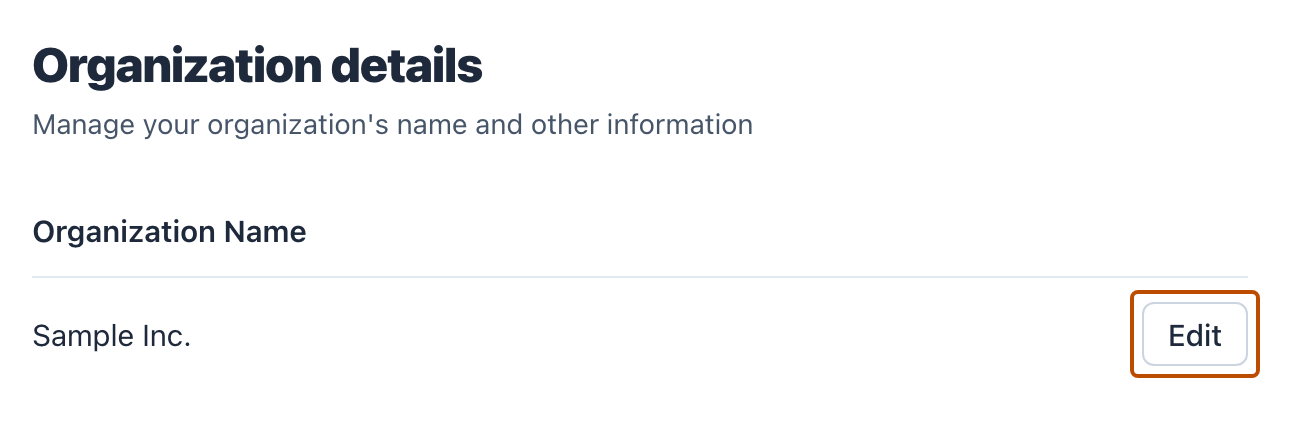
At sign-up, the organization name is the name entered in “Organization name (optional)”. If it was left empty, the name is “(name)’s Subel” (the name is the one used to sign up, or the part of the email address before @). Invited people can see the organization name, so changing it to your company or business name makes it clear who is inviting them.
Only Admins can open “Organization details”.
Switch organizations
Section titled “Switch organizations”One email address can belong to only one organization. To use Subel at another company as well, ask to be invited with that company’s email address, or sign up with it.
People who joined more than one organization in the past can switch between them.
- Press the organization name at the top of the left menu.
- In the list under “Organizations”, press the organization to open.
Joining by email domain
Section titled “Joining by email domain”You can let people from your company join this organization when they sign up for Subel, without inviting them.
- Open “Organization details” in the settings.
- Press the switch under “Joining by email domain” to turn it on.
- The domain used is the one in the email address of the Admin who turns it on. If taro@example.com turns it on, people with an @example.com email address can join.
- People who join become Editors.
- When someone joins, Admins are told by email.
- It is not available for free email addresses (such as Gmail).
- Don’t turn it on if people outside your organization also have email addresses with the same domain, as students do at a school. They would be able to join too.
- People signing up can also create a new organization instead of joining this one. If you want separate organizations for each department, create a new one for each.
Only Admins can change it. When you turn it off, no one can join this way from then on.
Delete the organization
Section titled “Delete the organization”- Open “Organization details” in the settings, and press “Delete organization”.
- Check what will be deleted, press “Sign in to verify it’s you”, and sign in again.
- To confirm, enter the organization name and press “Delete”.
Deleting cannot be undone.
- What is deleted: Everything made in this organization, such as reading result sheets, reading rules, documents waiting in Pending reads and uploaded files, notifications, and the organization name and settings. Download any data you need first.
- Your current plan ends when you delete the organization, and the rest of the period is not refunded.
- Members (including invited people) can no longer enter this organization. The Subel accounts of people who belong only to this organization (including you) are deleted too. You are signed out after the deletion, and the same email addresses can sign up or be invited again.
- Audit logs, billing records, and usage records (such as the number of pages read) are kept.
An organization that pays by invoice cannot be deleted from this screen. Please email support@subel.ai or use the contact form.
Unused free organizations
Section titled “Unused free organizations”If an organization stays on the Free plan and none of its members sign in for 12 months, the organization’s data is deleted. The accounts of people who belong only to that organization are also deleted. Admins are told by email 30 days and 7 days before the deletion.