Account and organization
Account
5 min read
This page was translated from Japanese by AI.
Open settings
Section titled “Open settings”- Press the organization name at the top of the left menu.
- Press “Settings”.
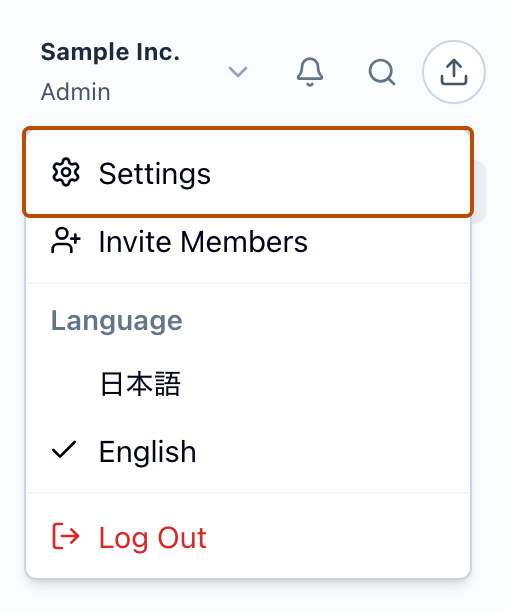
“Profile” opens. To go back to the app, press “Back to App” at the top left.
Change your name
Section titled “Change your name”- Open “Profile” in the settings.
- Press “Edit” for “Name”, enter the new name, and press “Save”.
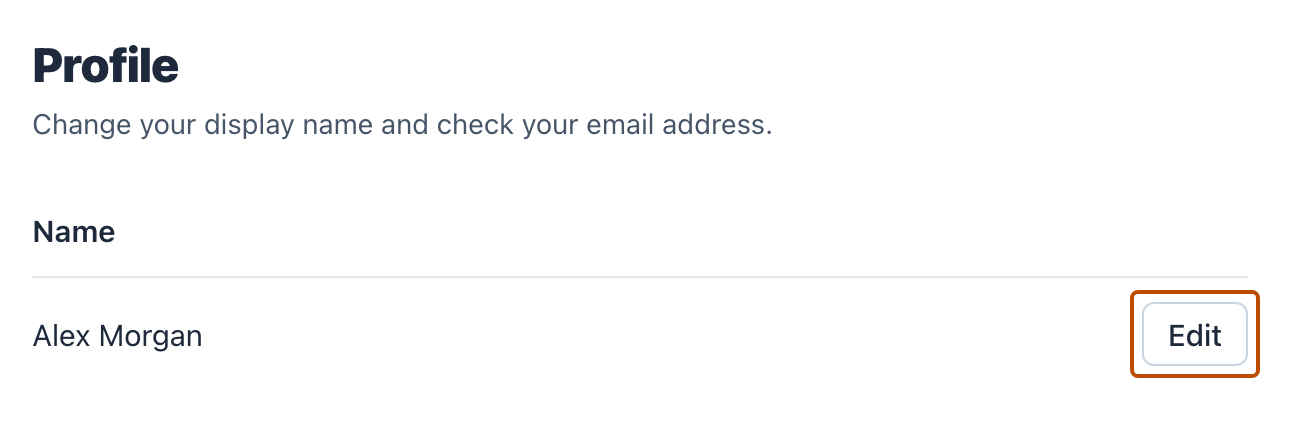
Your name is shown in the member list and in “Created by” of reading results.
You cannot change your email address on this screen.
Change the display language
Section titled “Change the display language”- Press the organization name at the top of the left menu.
- Under “Language”, press “日本語” or “English”.
The language you choose is saved, and Subel uses the same language when you open it on other devices. Emails from Subel about member changes and ways to sign in are also sent in the language you chose. The sign-in screens and the emails sent from them (such as email address confirmation and password resets) are in Japanese only.
See how you sign in
Section titled “See how you sign in”“Ways to sign in” in “Login and security” in the settings shows which of Google, Microsoft, password, and passkey you can sign in with.
Change your password
Section titled “Change your password”- Open “Login and security” in the settings.
- Press “Change” for “Password”.
- Enter the “Current password”, enter the “New password” twice, and press “Change”.
Use at least 8 characters for the new password, with uppercase and lowercase letters, a number, and a symbol. When you change your password, you are signed out on your other devices automatically.
When you change your password, you receive an email from Subel at your registered email address saying your password was set or changed (you also receive it when you set it again by resetting your password on the sign-in screen). If you did not do this, reset your password from the sign-in screen right away.
If you sign in only with a Google or Microsoft account, the “Password” row is not shown.
Set a password
Section titled “Set a password”If you sign in only with passkeys, you cannot sign in when the device your passkey is saved on can no longer be used. If you also set a password, you can sign in with it on the sign-in screen, and if you forget it, you can set it again yourself by resetting your password.
- Open “Login and security” in the settings.
- Press “Set up” for “Password”.
- Sign in again.
- A code is sent to your registered email address. Enter the code and the new password, and press “Continue”.
If you sign in only with passkeys, the app shows “Set a password too, in case you can no longer use this device” at the top. You can also set one by pressing “Set up” there. If you close it, it is no longer shown in that browser.
When you set a password, you are signed out on all devices, including this one. You are asked to sign in again right after setting it.
Add a passkey
Section titled “Add a passkey”With a passkey, you can sign in with your fingerprint, your face, or your device’s screen lock.
- Press “Add” for “Passkeys”.
- Sign in again, and follow the steps on the screen to register it.
In case this device can no longer be used, it is a good idea to also save a passkey on another device, such as your smartphone.
When you add a passkey, you receive an email from Subel at your registered email address saying a way to sign in was added. If you did not do this, press “Remove” for that passkey right away, and also press “Log out on all devices”.
Rename a passkey
Section titled “Rename a passkey”A passkey is given the name of the device and browser it was registered on (such as “Apple Macintosh, Mac OS, Chrome”). Passkeys registered on the same device get the same name, so you can give them names to tell them apart. For passkeys whose added date is known, the date is shown under the name. If the storage is also known, the place they are saved (such as “iCloud Keychain”) is shown too.
- In the “Passkeys” list, press “Rename” for the passkey to rename.
- Enter a name and press “Save”.
Names can be up to 50 characters. If you save an empty name, it goes back to the name given when it was registered. When you come back after adding a passkey, the name box of the passkey you added is open. If you do not want to name it, press “Cancel”.
Set up two-factor authentication
Section titled “Set up two-factor authentication”When you sign in with a password, you also enter the 6-digit number shown in an authenticator app on your smartphone.
- Press “Set up” for “Two-factor authentication (authenticator app)”.
- Sign in again, and follow the steps on the screen to register it in your authenticator app.
To stop using it, press “Turn off”.
When you set it up, you receive an email from Subel at your registered email address saying a way to sign in was added. If you did not do this, press “Turn off” right away, and also press “Log out on all devices”.
Log out on all devices
Section titled “Log out on all devices”Use this when there is a sign-in you do not recognize.
- Press “Log out on all devices”.
- Press “Log out”.
You are signed out on all devices, including this one. To continue, sign in again.
Delete your account
Section titled “Delete your account”- Press “Delete account” in “Profile” in the settings.
- Read the explanation that appears, press “Sign in to verify it’s you”, and sign in again.
- To confirm, enter your email address and press “Delete”.
- After you delete it, you can no longer sign in with this account. Deleting cannot be undone.
- Organizations that only you use are deleted along with your account. All the organization’s data (sheets, reading rules, and so on) is also deleted. Download any data you need first.
- Plans of those organizations end when you delete your account, and the rest of the period is not refunded.
- From organizations that have other members, you just leave. Their data and plan continue.
- You can register again later with the same email address.
When you cannot delete your account
Section titled “When you cannot delete your account”You cannot delete your account in these cases. Follow the steps on the screen.
- You are the only Admin of an organization that has other members: First make another member an Admin (Members and roles).
- You have an organization that pays by invoice: Please email support@subel.ai or use the contact form.