Reading
Start reading
3 min read
This page was translated from Japanese by AI.
Files you can read
Section titled “Files you can read”You can read PDFs and images (PNG and JPG).
| Limit | Value |
|---|---|
| Size of one file | Up to 20 MB |
| Pages in one file | Up to 50 pages |
| Files you can send at once | Up to 20 files (up to 3 files on the Free plan) |
| Pages you can send at once | Up to 100 pages in total (each image counts as 1 page) |
You cannot send a zip file. Take out the PDFs and images inside and choose them.
Open a new reading
Section titled “Open a new reading”Press one of the following to open “New reading”.
- The “New reading” button at the top of the left menu (shaped like an upward arrow)
- “New reading” at the top right of the “Pending reads” or “Reading results” screen
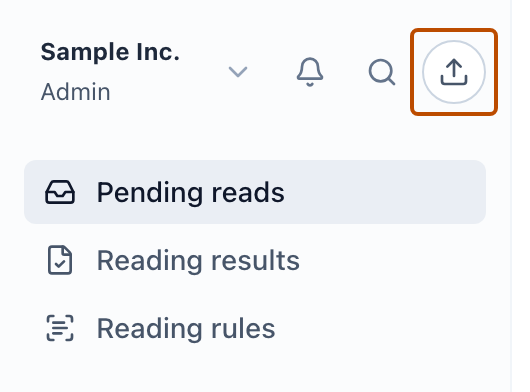
With the Viewer role, you cannot start reading (Members and roles).
Choose files
Section titled “Choose files”- Drop files on the “Choose files, or drag and drop them here” box, or press the box to choose them.
- To add more files, press “Add files”. To take a file out, press the × to the right of the file.
- Press “Next”.
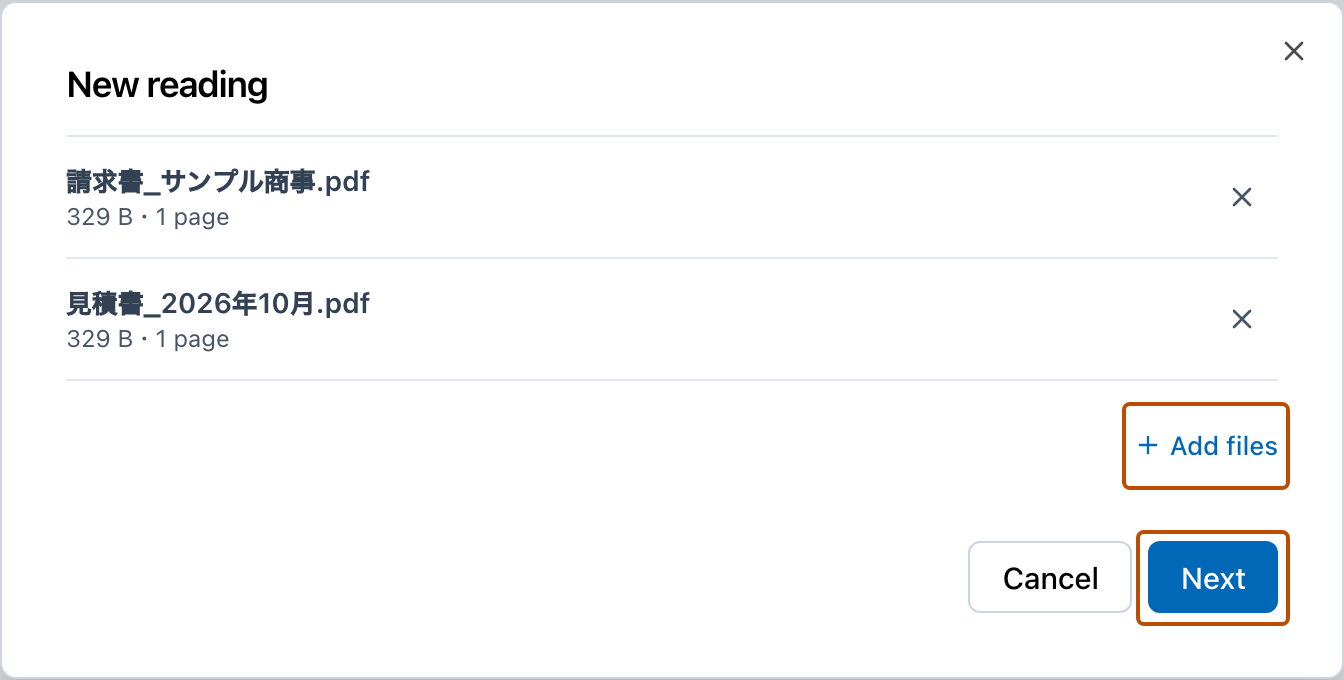
If a file cannot be sent, the reason is shown and you cannot press “Next”. Take the file out, or send the files in several parts.
Read images as one document
Section titled “Read images as one document”When you choose two or more images, you can choose “How to read”.
- “Read as separate documents”: Each image is read as a document of its own.
- “Read as pages of one document”: Like two photos of a two-page certificate, the pages are read as one document. They become page 1, page 2, and so on from the top. You can change the order with “Move up” and “Move down”.
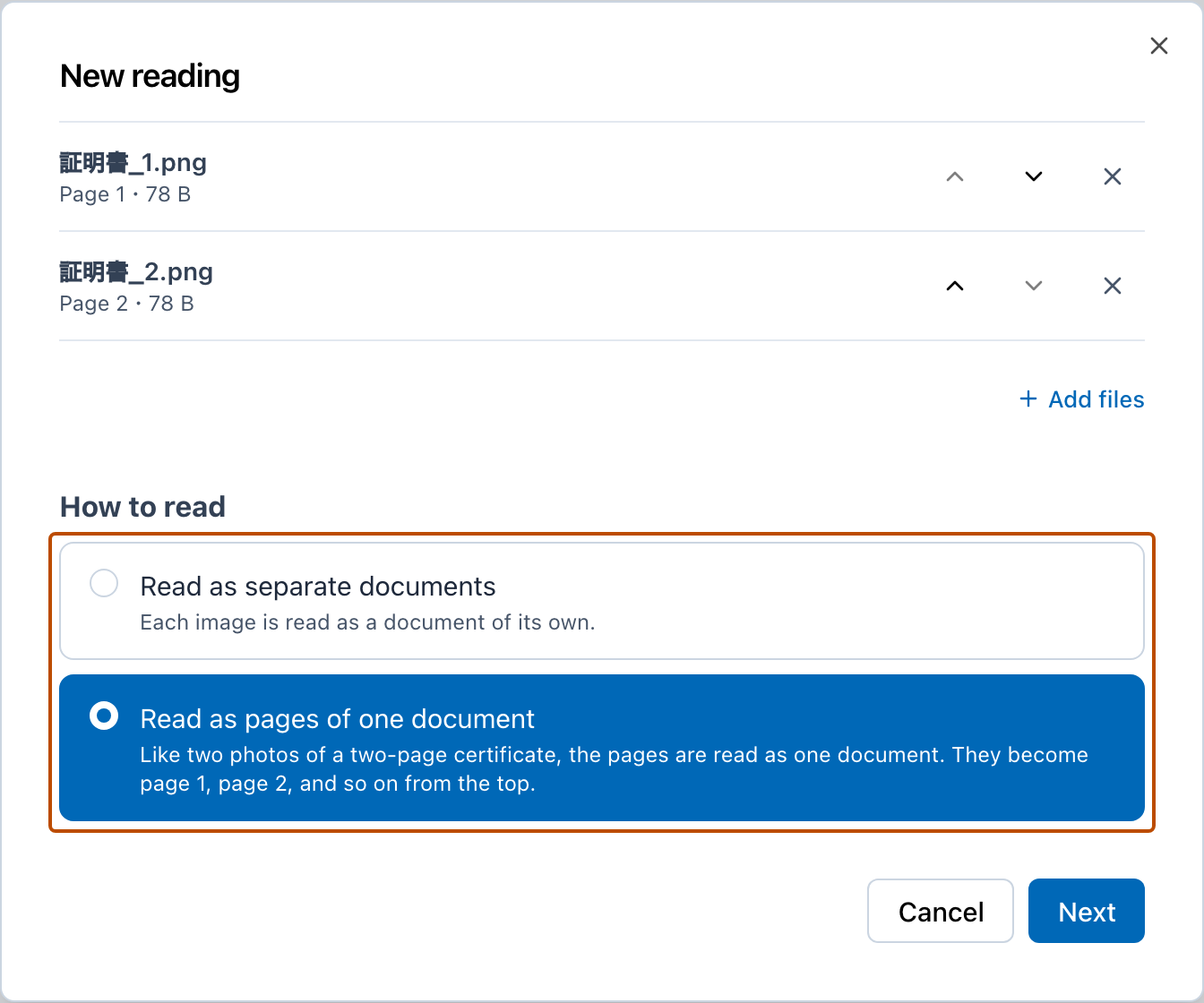
Choose how to read
Section titled “Choose how to read”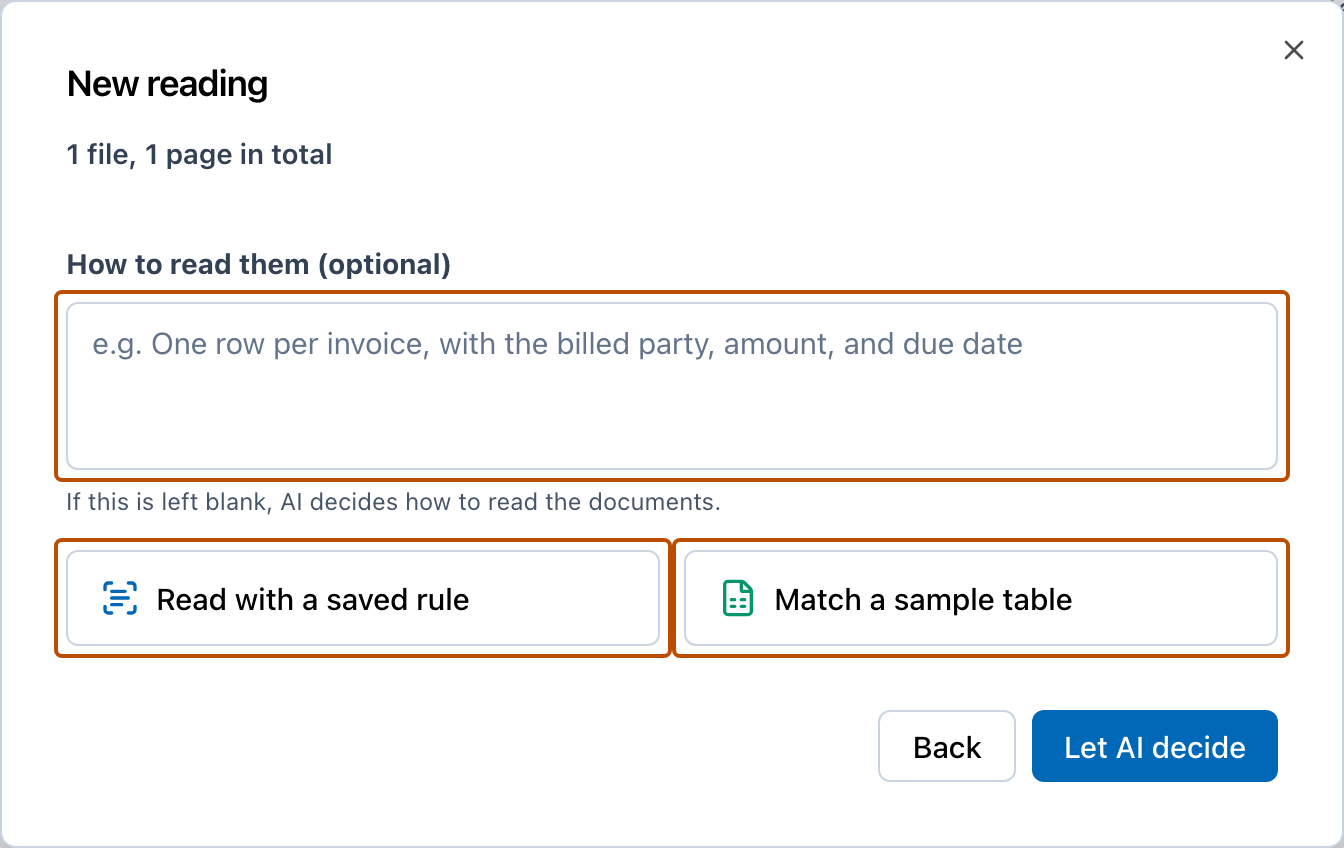
Choose one of the following three ways, and start reading with the button below.
| Way to read | How to use it | Button to start |
|---|---|---|
| Read with instructions | In “How to read them (optional)”, write what kind of table you want. If you leave it blank, AI decides how to read the documents | “Let AI decide” (when it is blank) or “Read” |
| Read with a saved rule | Press “Read with a saved rule” and choose a reading rule. The documents are read with the same items as before | “Read with this rule” |
| Match a sample table | With “Match a sample table” and then “Choose a sample table”, choose an Excel (.xlsx) or CSV file of the table you want to make. The documents are read into the columns of that table | “Read into these columns” |
Example instructions: “One row per invoice, with the billed party, amount, and due date”
The sample table file can be up to 10 MB. The file is not saved. To understand what the columns mean, the first few rows are shown to AI.
Until reading finishes
Section titled “Until reading finishes”- When you start reading, the files are sent first. Each file shows “Waiting to send”, “Sending N%”, or “Sent”.
- A file that could not be sent shows “Could not send”. Press “Send again” for that file, or press × to remove it. If some files were sent, you can also press “Continue with the sent files”.
- If you try to close the dialog while the files are being sent, “Documents are still being sent” appears. If you press “Close”, the sending is cancelled.
- When the files are sent, “Registering the reading” appears. If it shows “The reading could not be registered”, follow the instructions and press “Send again”.
- While reading, each file shows “Reading” or “Read”.
- After the reading is registered, it continues even if you close the dialog. Finished readings appear in “Pending reads”, and you also get a notification in the bell at the top left.
- If you keep the dialog open until reading finishes, the review screen opens.
- If some files could not be read, press “Try again” for that file, or press “Continue to review with the files that were read”.
How much you can read
Section titled “How much you can read”Each plan has a monthly limit on the number of pages you can read (Plans and billing). When you reach the limit, you cannot read anything new. You can still view reading results, download them, and use the conversation with the AI on the review screen.