Plans and billing
Plans and billing
5 min read
This page was translated from Japanese by AI.
Plans and limits
Section titled “Plans and limits”Prices exclude tax (prices including tax are in parentheses).
| Free | Starter | Standard | Business | |
|---|---|---|---|---|
| Monthly | ¥0 | ¥3,980 (¥4,378) | ¥9,800 (¥10,780) | ¥24,800 (¥27,280) |
| Yearly | — | ¥39,800 (¥43,780) | ¥98,000 (¥107,800) | ¥248,000 (¥272,800) |
| Reading (per month) | 20 pages | 100 pages | 300 pages | 1,000 pages |
| Additional pages (per page) | — | ¥35 | ¥30 | ¥25 |
| Members | 1 | Up to 3 | Up to 20 | Up to 50 |
| Reading rules | Up to 2 | Up to 10 | Up to 30 | Unlimited |
| Files per read | Up to 3 | Up to 20 | Up to 20 | Up to 20 |
| Choose roles | — | — | Included | Included |
- The number of pages you can read resets every month.
- Pages that could not be read because of a fault on Subel’s side or a network failure are not counted.
- If the text was read but the table could not be made, the pages are counted. When the table can be made again with “Try again”, they are not counted again.
- Additional pages are charged for each page you read past your plan’s pages, once you turn them on (Additional pages).
- You can use the conversation with the AI on the review screen within each plan’s limit.
- On paid plans (including the trial), documents are read in more detail by also looking at the page images (up to 8 pages per file; with some reading rules, some pages are read without their images). On the Free plan, they are read from the text and tables that were read.
- For more than 1,000 pages a month, paying by invoice, or replacing personal information, contact us from “Contact us” on the Plan screen.
Open the Plan screen
Section titled “Open the Plan screen”- Press the organization name at the top of the left menu, and press “Settings”.
- Press “Plan”.
Only Admins can open “Plan”, “Usage”, and “Billing”.
A newly registered organization can try Standard for 14 days. If, for example, you have already had a trial with the same email address before, you start on the Free plan without a trial.
- During the trial, you can read up to 100 pages in total over the 14 days.
- The top of the Plan screen shows how many days of the trial are left.
- When the trial ends, you are moved to the Free plan automatically. To keep using a paid plan, subscribe during the trial or after it ends.
Subscribe
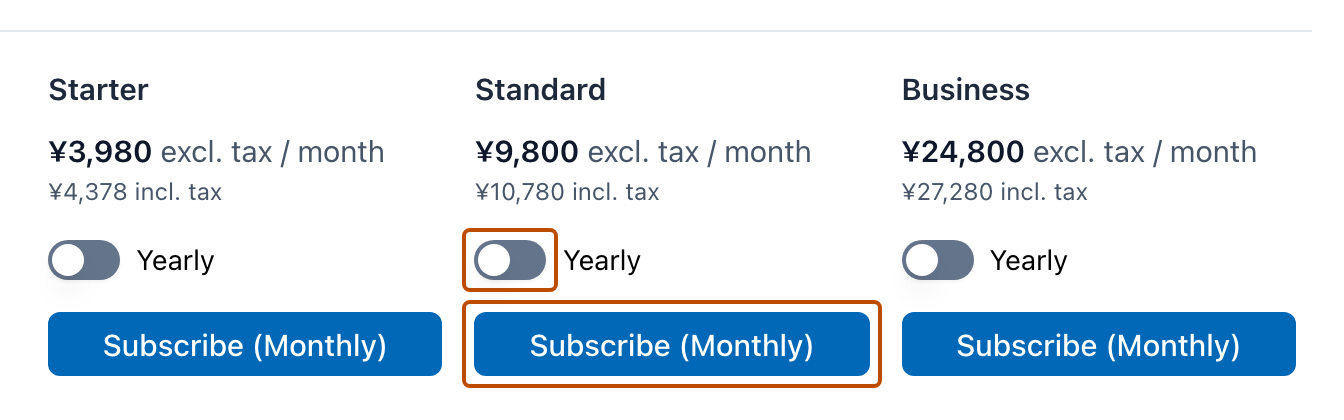
Section titled “Subscribe”- In “Compare plans” on the Plan screen, choose the plan to use. To pay yearly, turn on “Yearly” for that plan.
- Press “Subscribe (Monthly)” or “Subscribe (Yearly)”.
- Press “Go to payment page”, and enter your card and pay on the payment page.
- When you come back to Subel, your plan is updated.
Change plans
Section titled “Change plans”- In “Compare plans” on the Plan screen, press “Upgrade plan” or “Downgrade plan”.
- Check the payment and the date the change takes effect, and press “Change plan”.
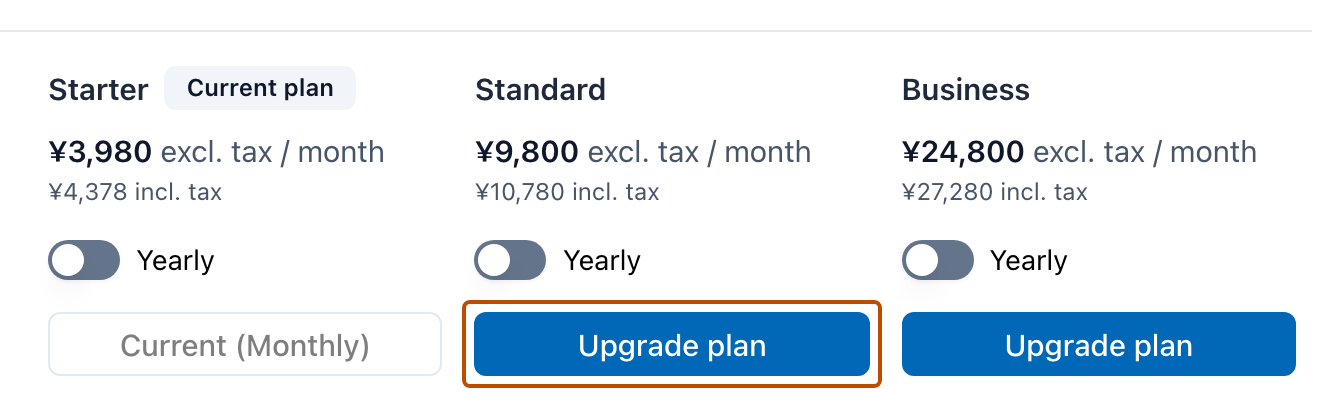
- When you upgrade: You pay the difference that day, and the plan changes right away.
- When you downgrade: The plan changes at the end of the current billing period. Until then, you can keep using your current plan. Until it changes, you can cancel it with “Cancel this change” on the Plan screen.
Switch to the Free plan
Section titled “Switch to the Free plan”- Press “Switch to the Free plan” at the very bottom of the Plan screen.
- On the screen that appears, press “Switch to the Free plan” again.
You are moved to the Free plan at the end of the current billing period. Until then, you can use your current plan. Until it changes, you can cancel it with “Stay on my plan”.
Members and settings after a downgrade
Section titled “Members and settings after a downgrade”When there are more members than the plan allows, the people over the limit become “View only”. Admins get a place first, then the others in the order they joined. People who are “View only” can only view and download reading results.
View usage
Section titled “View usage”“Usage” in the settings shows how much you are using.
| Item | What it shows |
|---|---|
| Chat with AI (this month) | What percentage of the limit you used for the conversation with the AI on the review screen |
| Scanned pages (this month) | The number of pages read and the limit |
| Members | The number of members and the limit |
Under the chat with AI and the scanned pages, the date and time when the limit resets is shown. When reading reaches 80% of the limit, a notice is shown on the screen.
Additional pages
Section titled “Additional pages”On Starter, Standard, and Business paid by card, once an Admin turns on additional pages, you can keep reading past your plan’s pages, up to the monthly limit.
- Open “Usage” in the settings.
- In “Additional pages”, turn on “Keep reading past your plan’s pages”.
- To change the monthly limit, press “Change” in “Monthly limit”, enter the number of pages in “Monthly limit (pages)”, and press “Save”.
- When you first turn it on, the monthly limit is the same as your plan’s pages. The monthly limit can be from 1 to 100,000 pages.
- When you turn it off, reads you start after that stop at your plan’s pages. Additional pages read until then (including reads started before you turned it off) are billed the following month.
- Each page read past your plan is counted at the “Additional pages (per page)” price (excluding tax) in the plan table. The additional pages read this month and the estimated amount are shown under “Monthly limit”.
- Pages past your plan are charged the following month to the same card as your plan, on an invoice separate from your plan.
- If the payment for additional pages is not complete, you cannot read past your plan’s pages until it is paid. Press “Pay” in the notice on “Usage” to pay.
- When you reach 80% of your plan’s pages, when you reach your plan’s pages, when you reach 80% of the monthly limit, and when you reach the monthly limit, a notice is shown on the screen and Admins also receive an email. The same notice is emailed only once until your allowance resets. If you reach several of these points at once, only one email is sent, for the furthest one. Even when additional pages are turned off, an email is sent when you reach 80% of your plan’s pages and when you reach your plan’s pages.
- During the trial, on the Free plan, and when paying by invoice, additional pages are not available and these emails are not sent.
Invoices and payment method
Section titled “Invoices and payment method”“Billing” in the settings shows your billing history. Press “PDF” to download an invoice.
To change your credit card, press “Manage payment method” in “Billing” or on the Plan screen.
If a payment fails
Section titled “If a payment fails”If your card payment fails, the organization’s use is paused. While it is paused, you can still view and export your data. When an Admin presses “Update card” on the Plan screen and updates the card, you can keep using Subel as before.
If the payment is still not made 7 days after it failed, the paid plan ends and the organization moves to the Free plan. Your reading results and reading rules remain, but the limits become those of the Free plan (for members, see Members and settings after a downgrade). To go back to a paid plan, subscribe again from the Plan screen.