Using results
View reading results
1 min read
This page was translated from Japanese by AI.
Open the list
Section titled “Open the list”Press “Reading results” in the left menu. Confirmed reading results (sheets) are listed, newest saved first.
| Column | What it shows |
|---|---|
| Name | The name of the sheet |
| Source documents | The names of the files that were read |
| Created by | The person who confirmed it and made the sheet |
| Saved | When it was confirmed (when rows were added, when they were added) |
You can also open recent ones from “Recent reading results” in the left menu.
Search
Section titled “Search”- Press the magnifying glass button at the top of the left menu.
- Enter the name of the reading result or of the original file.
View the contents
Section titled “View the contents”Press a row in the list to open the sheet. It shows the table as it was confirmed.
Download
Section titled “Download”- Open the sheet.
- Press the download button at the top right (shaped like a downward arrow).
- Press “Download as Excel” or “Download as CSV”.
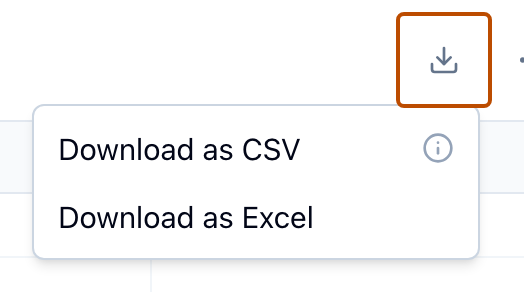
The character encoding and separator of the CSV are set once for the whole organization (Export format).
Add rows
Section titled “Add rows”When you later read documents of the same layout, choose “Add to an existing sheet” when you confirm, and the rows are added to a sheet you made before (Fix and confirm on the review screen).
Delete
Section titled “Delete”- Open the sheet.
- Press the “…” at the top right, and press “Delete”.
- Enter the sheet name and press “Delete”.
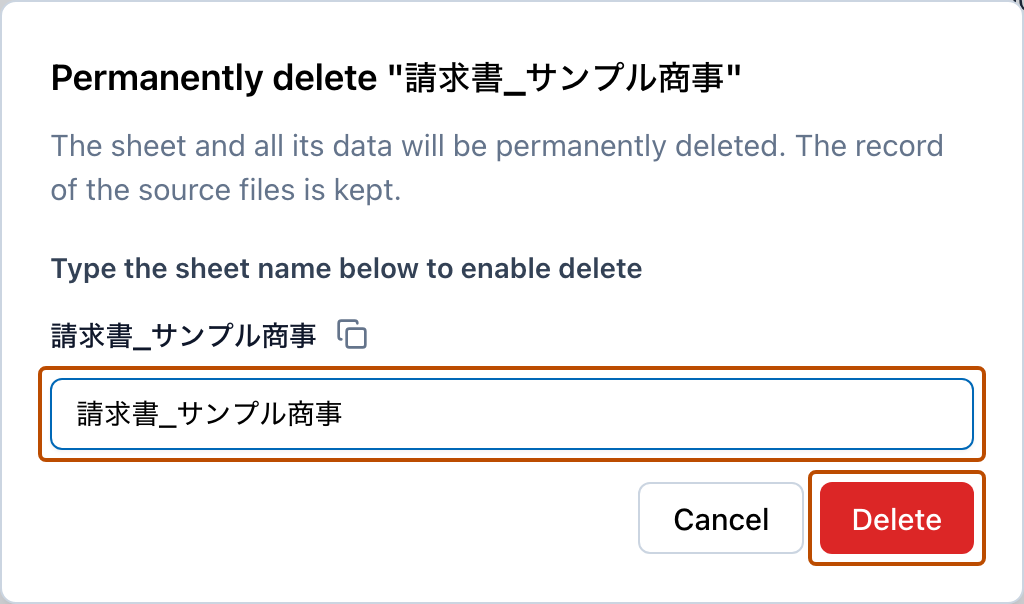
The sheet and all its data are deleted. This cannot be undone. The record of the original files is kept.
Admins can delete any sheet. Editors can delete only the sheets they created. Viewers cannot delete sheets.
Who can see them
Section titled “Who can see them”Anyone, whether Viewer, Editor, or Admin, can see reading results and download them.