Account and organization
Members and roles
3 min read
This page was translated from Japanese by AI.
What each role can do
Section titled “What each role can do”| What you can do | Admin | Editor | Viewer |
|---|---|---|---|
| View and download reading results | ○ | ○ | ○ |
| Start reading, fix and confirm on the review screen | ○ | ○ | — |
| Save and rename reading rules | ○ | ○ | — |
| Delete sheets and rules you made | ○ | ○ | — |
| Delete sheets and rules other people made | ○ | — | — |
| Invite members, change roles, and remove members | ○ | — | — |
| Change the organization name, plan, payment, and CSV export settings | ○ | — | — |
You can choose roles on the Standard plan or higher. On the Starter plan, invited people join as Editors.
See the member list
Section titled “See the member list”- Press the organization name at the top of the left menu, and press “Settings”.
- Press “Members”.
The list shows each member’s name, email address, role, and the date they joined. You can narrow it down with “Search by name or email”.
Invite members
Section titled “Invite members”To add a member, invite them by email.
- Press “Invite Members” on the Members screen (you can also open it from “Invite Members” in the organization menu).
- Enter the email address of the person to invite.
- Choose a “Role” (on the Standard plan or higher).
- Press “Invite”.
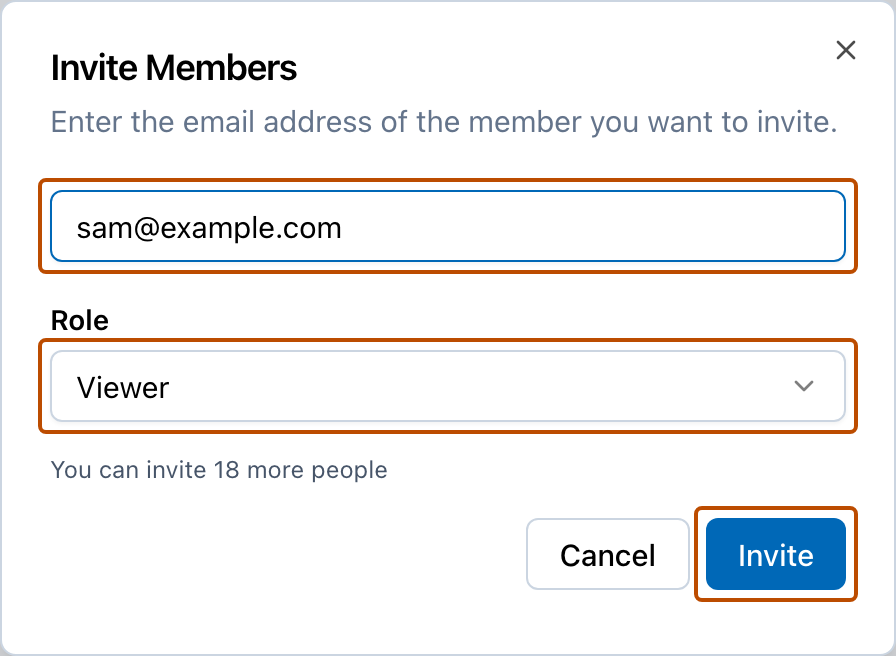
The invited person receives an invitation email. To invite someone as an Admin, you sign in again to confirm it is you, and then invite them.
If no one has been invited to the organization yet and its name is still “(name)’s Subel”, the name it was given at sign-up, the invitation dialog shows a notice. Invited people can see the organization name, so change the organization name to your company or business name first to make it clear who is inviting them.
Accept an invitation
Section titled “Accept an invitation”The invited person joins as follows.
- Open the link in the invitation email.
- When asked whether to join the organization, check the organization name and who invited you, and press “Join”.
- Follow the on-screen instructions and create an account with the email address that was invited.
The invitation link can be used for 7 days. If you do not recognize the invitation, press “Don’t join”.
Email addresses used in another organization
Section titled “Email addresses used in another organization”One email address can belong to only one organization. An email address that already uses Subel in another organization cannot be invited (“This email address is used in another organization” is shown). Invite that person with a different email address.
If you were invited with an email address that already uses Subel in another organization, you cannot join either (“The account for this email address is already used in another organization” is shown). Ask the person who invited you to invite you again with a different email address.
Resend or revoke an invitation
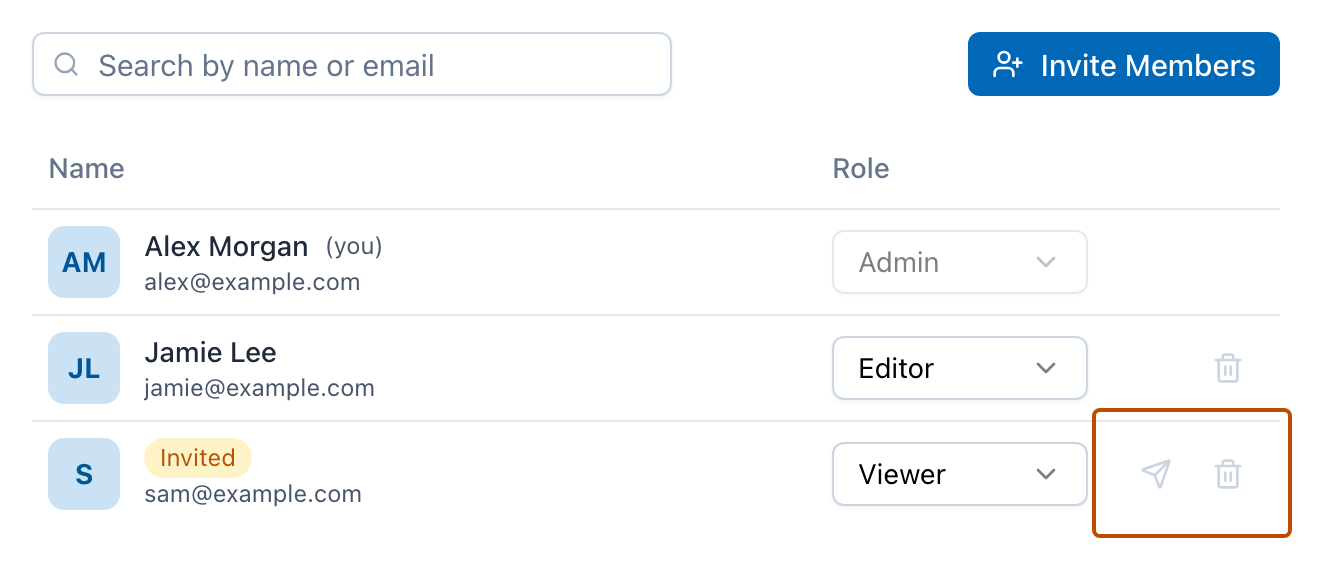
Section titled “Resend or revoke an invitation”The row of a person who has not joined yet shows “Invited”.
- Resend the invitation email: Press the send button at the right of the row, and press “Resend”. The link sent before can no longer be used.
- Revoke the invitation: Press the trash can button at the right of the row, sign in again, and press “Revoke”.
Change a role
Section titled “Change a role”- Choose a different “Role” in the member’s row.
- Press “Sign in and change”, and sign in again.
- Press “Change”.
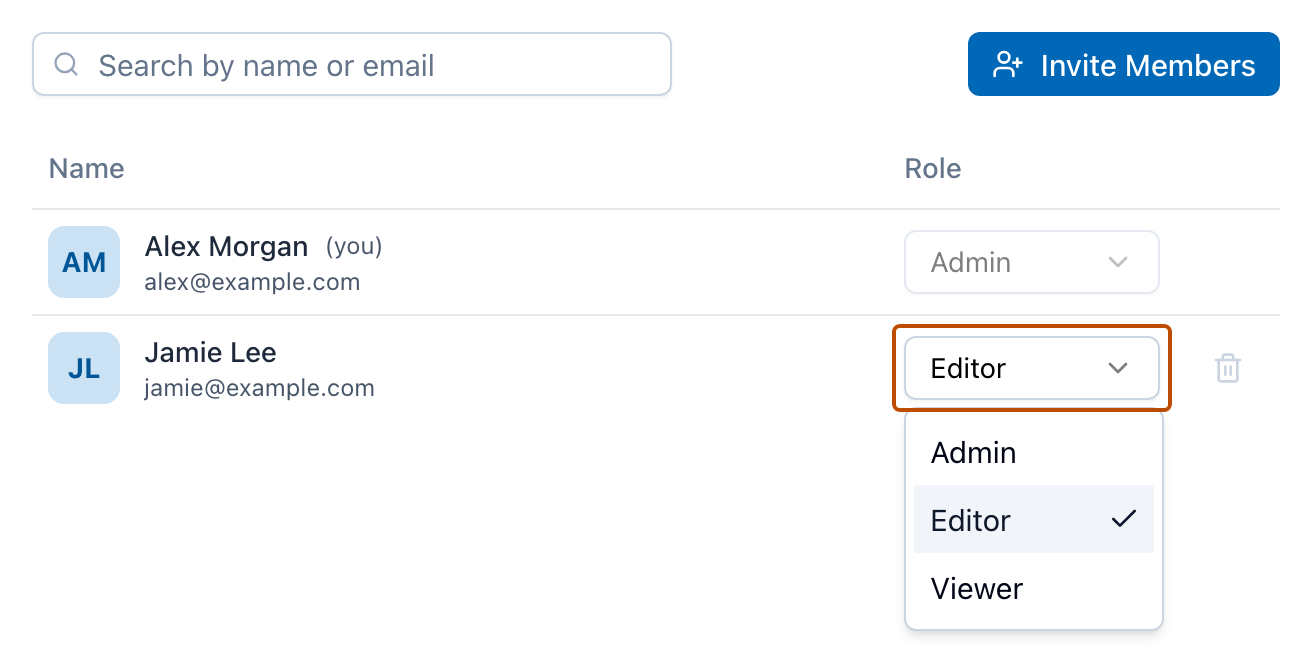
You cannot change your own role. You cannot make a change that leaves the organization with no Admin.
Remove a member
Section titled “Remove a member”- Press the trash can button at the right of the member’s row.
- Press “Sign in and remove”, and sign in again.
- Press “Remove”.
A removed person can no longer enter this organization, and their Subel account is deleted too. You can invite the same email address again. You cannot remove yourself.
Member limits
Section titled “Member limits”| Plan | Member limit (including you) |
|---|---|
| Free | 1 |
| Starter | 3 |
| Standard | 20 |
| Business | 50 |
Invited people also count toward the limit. The invitation dialog shows “You can invite N more people”.
If you downgrade your plan and go over the limit, the people over the limit become “View only” (Plans and billing).