Reading
Reading rules
2 min read
This page was translated from Japanese by AI.
What is a reading rule?
Section titled “What is a reading rule?”A reading rule saves the items of a table you read (the column names and types) and the changes you asked for in the conversation with the AI on the review screen. Next time, you can read documents of the same layout (such as invoices that arrive every month) with the same items.
Save a rule
Section titled “Save a rule”- On the review screen, fix the table and press “Confirm” to confirm it.
- When you are asked “Save this extraction as a rule?”, enter a “Rule name” and press “Save”.
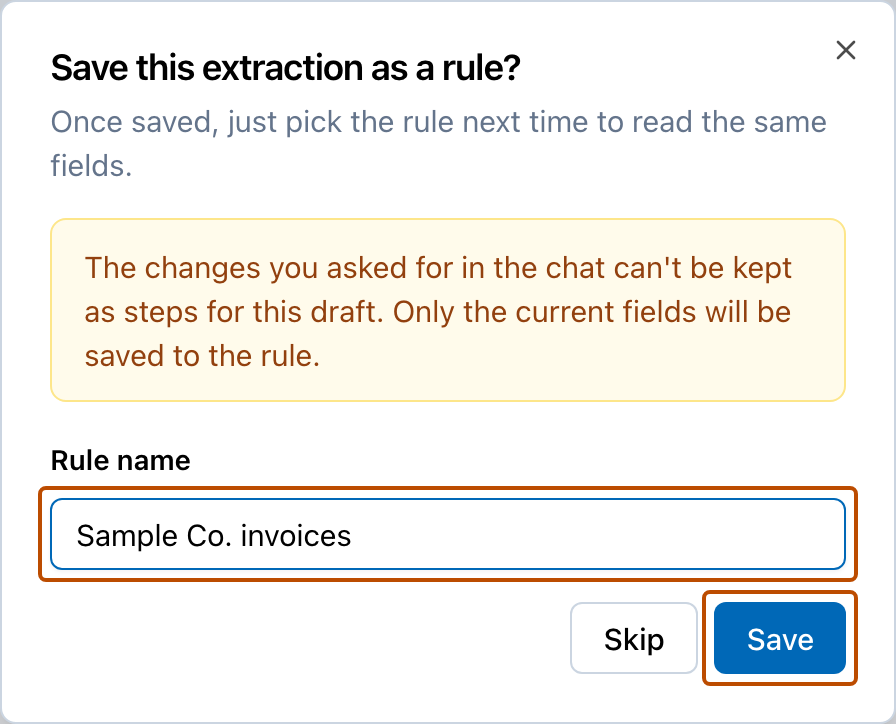
You are not asked when you confirm a reading result that was read with a saved rule.
When you read a document without a rule and its table has the same headings as a document you confirmed before, the review screen shows “This document has the same layout as one you confirmed before. With a reading rule, the next ones are read faster and with the same columns.”
Read with a rule
Section titled “Read with a rule”- In New reading, choose the files and press “Next”.
- Press “Read with a saved rule” and choose a rule. You can look for it with “Search by rule name”.
- Press “Read with this rule”.
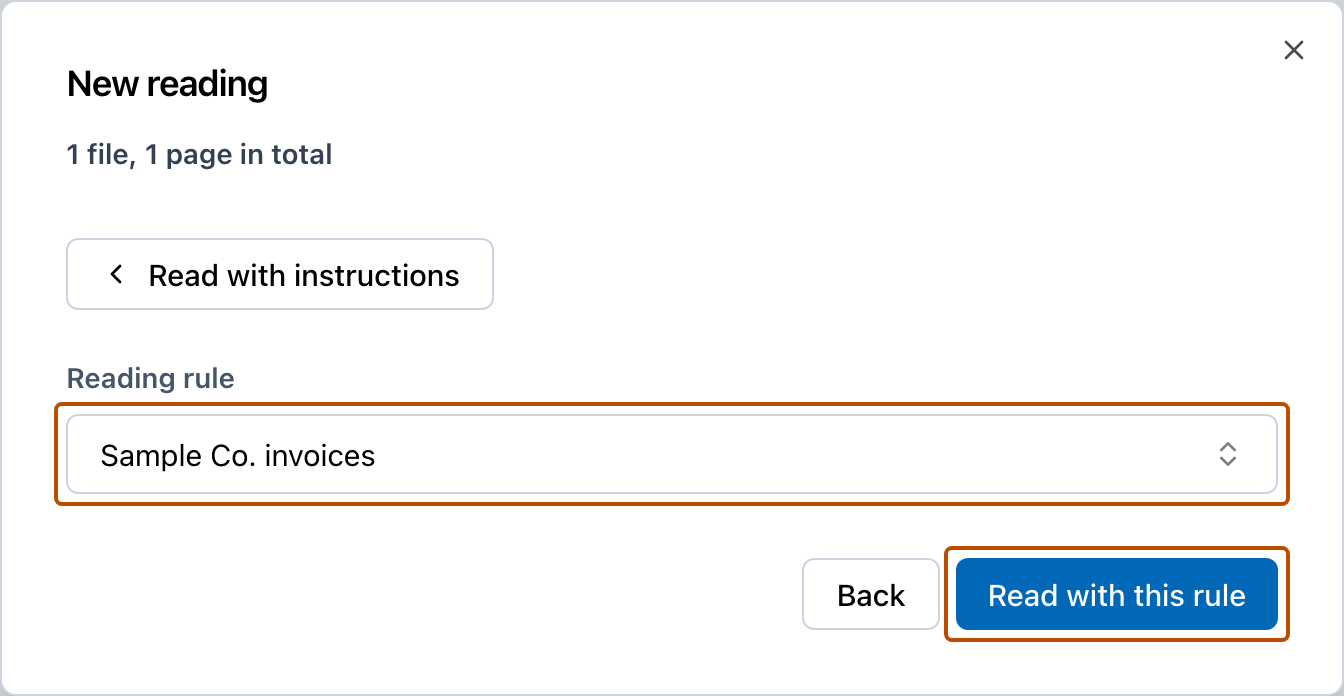
For a file where an item of the rule was not found, that item is left blank. The review screen shows in which files it was not found.
See the list of rules
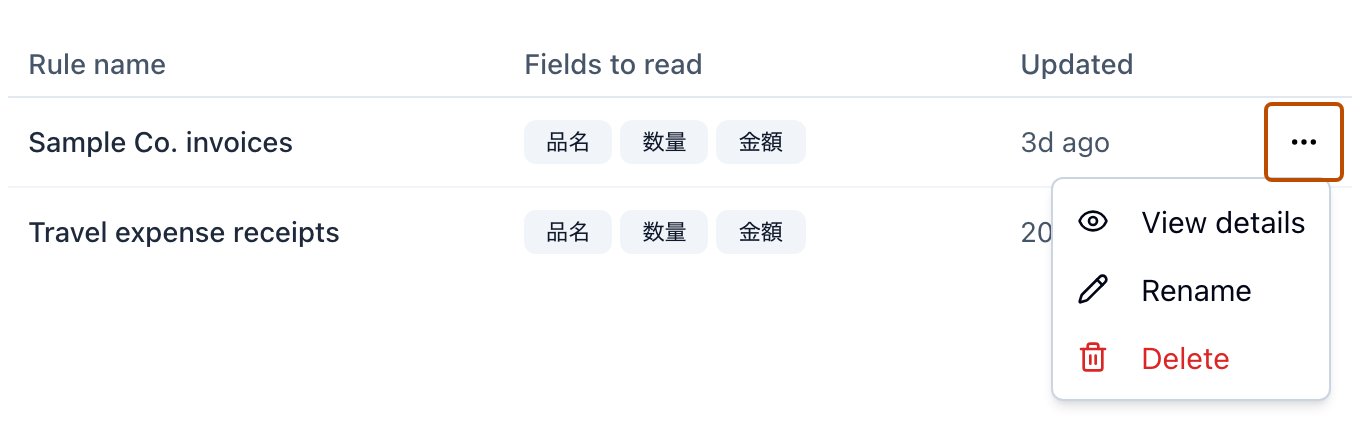
Section titled “See the list of rules”Press “Reading rules” in the left menu. The list shows “Rule name”, “Fields to read”, and “Updated”.
See what a rule contains
Section titled “See what a rule contains”- Press the “…” at the right of the rule’s row.
- Press “View details”.
It shows the items the rule reads (name, type, and description) and “What counts as one row”. If the rule has changes, it also shows “Steps applied after reading”.
Rename a rule
Section titled “Rename a rule”- Press the “…” at the right of the rule’s row.
- Press “Rename”, enter the new name, and press “Rename”.
To change the fields
Section titled “To change the fields”You cannot change the items or changes of a rule later. Make the rule again as follows.
- Read without choosing a rule (read with instructions, or let AI decide).
- On the review screen, fix the items the way you want and confirm.
- Save it as a new rule.
- Delete the old rule.
Delete a rule
Section titled “Delete a rule”- Press the “…” at the right of the rule’s row.
- Press “Delete”, and press “Delete” again.
Deleting cannot be undone. Sheets you already read and confirmed with that rule are not affected.
How many you can save
Section titled “How many you can save”| Plan | Rules you can save |
|---|---|
| Free | Up to 2 |
| Starter | Up to 10 |
| Standard | Up to 30 |
| Business | Unlimited |
Who can work with rules
Section titled “Who can work with rules”- Save and rename: Editors and Admins
- Delete: Admins, and the person who saved the rule
- See the list: Everyone